Appendix A. A local GPU cluster with kind
Our controller in section 1.1 runs pods that ask for GPUs. In this appendix, we will set up
a kind cluster on a Jetson so that those pods really run on the board’s GPU. We will first
follow a GPU request all the way from a pod to the hardware, so that we know every piece
involved and why it is there. Then we will look at a fresh kind node, see which of those
pieces it is missing, and add them one at a time, checking our work after each step.
Finally we will run a CUDA program in a pod and watch it use the GPU. All the files are in
code/jetson-gpu.
We tested every step on this system:
$ tr -d '\0' < /proc/device-tree/model; echo
NVIDIA Jetson Orin NX Engineering Reference Developer Kit Super
$ head -1 /etc/nv_tegra_release
# R36 (release), REVISION: 4.3, GCID: 38968081, BOARD: generic, EABI: aarch64, DATE: Wed Jan  8 01:49:37 UTC 2025
$ nvidia-ctk --version | head -1
NVIDIA Container Toolkit CLI version 1.17.3
$ kind version
kind v0.33.0 go1.26.7 linux/arm64
Release R36.4.3 of Jetson Linux is part of JetPack 6.2, which ships CUDA 12.6 and the NVIDIA Container Toolkit.
How a program reaches the GPU
The GPU in a Jetson sits on the same chip as the CPU and shares its memory. A program on the board reaches it in the same two ways it would reach any device on Linux.
The first is through device files under /dev. The kernel’s GPU driver creates files
such as /dev/nvhost-gpu and /dev/nvmap, and a program talks to the driver by opening
these files and making system calls on them.
The second is through the user-space driver libraries: code that runs inside the program
and knows how to talk to those device files. The most important one is libcuda.so, the
CUDA driver library. When a CUDA program calls a function such as cudaMalloc, the call
ends up in libcuda.so, which turns it into operations on the device files. JetPack
installs these libraries under /usr/lib/aarch64-linux-gnu/nvidia.
A program running directly on the board has both of these. A program in a container has neither.
Why a container cannot see the GPU
A container’s files come from its image, and its /dev holds only a handful of harmless
devices such as /dev/null. The GPU’s device files are not there, and the host’s driver
libraries are not in the image. The image cannot simply bring its own copy of the driver
libraries, either, because they have to match the kernel driver running on this particular
board exactly.
So something has to add the device files and the host’s libraries to each GPU container, and it has to do so at the moment the container is created. To see where that can happen, we need to know how containers are created.
When Kubernetes starts a container, the kubelet (the Kubernetes agent on each machine)
asks the machine’s container engine, containerd in our case, to create it. containerd
prepares the container’s filesystem and writes a JSON document called the OCI runtime
specification, which lists everything about the container: its mounts, its device
files, its environment variables, and the command to run. containerd then hands that
document to a low-level runtime, usually a program called runc, which creates the
container exactly as the document says.
The NVIDIA Container Runtime slots into that hand-off. NVIDIA’s documentation describes it
as “a shim for OCI-compliant low-level runtimes such as runc”. In practice, containerd is
configured to call nvidia-container-runtime instead of runc. The NVIDIA runtime reads
the specification, adds the GPU’s device files and mounts for the driver libraries, and
then calls runc with the edited document. The container starts with the GPU already in
place.
How the runtime knows what to add
On a data center machine with PCIe GPUs, the runtime asks the driver which GPUs exist and
which files each one needs. On a Jetson it reads that information from plain text files
instead. NVIDIA’s runtime documentation calls this CSV mode: “CSV files at
/etc/nvidia-container-runtime/host-files-for-container.d define the devices and mounts
that are to be injected”, and the mode “is primarily targeted at Tegra-based systems
without NVML available”. NVML is the management library that data center drivers provide;
Tegra is the family name of NVIDIA’s system-on-chip products, including the Orin in our
Jetson.
Each line of a CSV file gives a type and a path. Here are the lines for libcuda:
$ grep -h "libcuda" /etc/nvidia-container-runtime/host-files-for-container.d/drivers.csv
lib, /usr/lib/aarch64-linux-gnu/nvidia/libcuda.so.1.1
sym, /usr/lib/aarch64-linux-gnu/libcuda.so
sym, /usr/lib/aarch64-linux-gnu/nvidia/libcuda.so
sym, /usr/lib/aarch64-linux-gnu/nvidia/libcuda.so.1
$ wc -l /etc/nvidia-container-runtime/host-files-for-container.d/*.csv
   40 /etc/nvidia-container-runtime/host-files-for-container.d/devices.csv
  285 /etc/nvidia-container-runtime/host-files-for-container.d/drivers.csv
  325 total
The type tells the runtime what to do with the path:
- A
devline names a device file to add to the container. - A
libline names a file to bind-mount from the host: the same file appears inside the container at the same path, without being copied. - A
symline names a symbolic link. The runtime recreates the link inside the container, pointing at the same target as on the host.
The libcuda lines show why the last type exists. The real library is
libcuda.so.1.1, and programs look for it under other names, such as libcuda.so.1, which
are links to the real file. The runtime mounts the real file once and recreates the links
around it.
The lists contain the driver and nothing else. The CUDA toolkit, libcudart and the rest
of /usr/local/cuda, is not in them, so a container has to bring its own CUDA runtime
library, either in its image or linked into its program. We will do the latter for our
test program.
One question remains: how does the runtime know which containers should get a GPU? It
looks for an environment variable, NVIDIA_VISIBLE_DEVICES. If a container’s
specification sets it, the runtime adds the GPU. If not, the runtime passes the
specification to runc untouched, and the container starts like any other. The next
piece of the puzzle is who sets that variable.
How a pod asks for a GPU
Kubernetes does not know what a GPU is. It knows about CPU and memory, and beyond those it
supports extended resources: named quantities, such as nvidia.com/gpu, that a machine
advertises and pods request. The scheduler, the component that chooses a machine for each
new pod, counts extended resources the same way it counts CPU and memory, without knowing
what they are. Extended resources come in whole units only, and a machine never hands out
more units than it advertises.
A machine advertises an extended resource through a device plugin. A device plugin is a small program, usually running as a pod on the machine, that speaks a protocol defined by Kubernetes to the kubelet. The conversation goes like this:
- The plugin starts a gRPC server on a Unix socket in
/var/lib/kubelet/device-plugins. It then connects to the kubelet’s own socket in the same directory,kubelet.sock, and registers: “I serve the resourcenvidia.com/gpu, and you can reach me at this socket.” - The kubelet calls the plugin’s
ListAndWatchmethod. The plugin answers with a list of device IDs and their health, and keeps the call open to report changes, such as a GPU becoming unhealthy. The kubelet adds the number of healthy devices to the machine’s advertised capacity, and from that moment the scheduler sees, for example,nvidia.com/gpu: 1on our node. - When the scheduler places a pod that asks for
nvidia.com/gpu: 1on the machine, the kubelet chooses a free device ID and calls the plugin’sAllocatemethod with it. The plugin answers with what the container needs in order to use that device: environment variables, device files, or mounts. The kubelet adds them to the container’s configuration before asking containerd to create it. - The kubelet writes every assignment of a device to a container into a checkpoint file,
kubelet_internal_checkpointin the same directory, so that it still knows which devices are in use after it restarts.
NVIDIA’s device plugin can answer Allocate in several ways. Its README lists the options
for the setting DEVICE_LIST_STRATEGY and describes the default: “envvar (default):
the NVIDIA_VISIBLE_DEVICES environment variable … is used to select the devices that
are to be injected by the NVIDIA Container Runtime.” That is the missing link: the plugin
sets the variable, and the runtime acts on it.
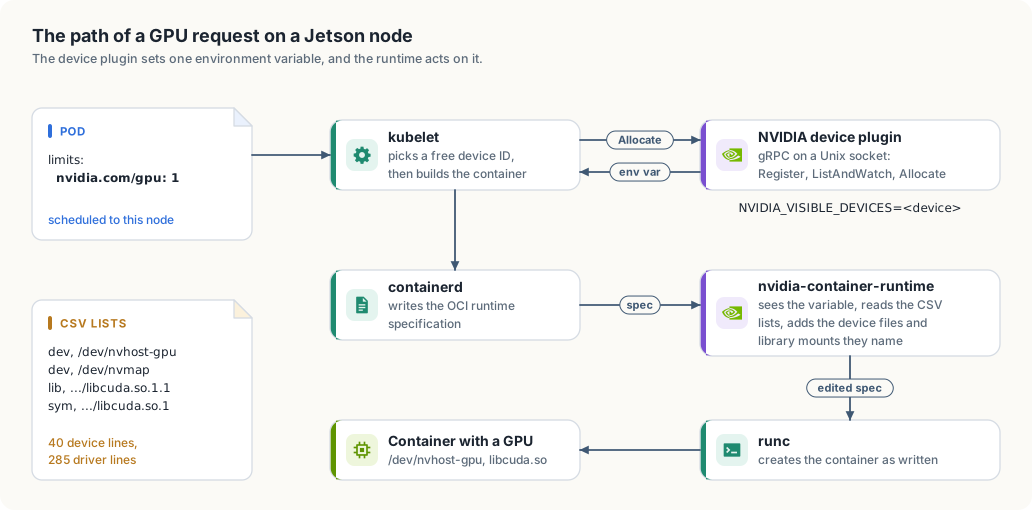
Putting the whole path together:
pod: limits: nvidia.com/gpu: 1
 |
 |  scheduler: places the pod on a machine that advertises a free nvidia.com/gpu
 v
kubelet ---- Allocate(device) ----> NVIDIA device plugin
 |       <--- NVIDIA_VISIBLE_DEVICES=<device> ---
 v
containerd: writes the OCI specification, with that variable in the environment
 |
 v
nvidia-container-runtime: sees the variable, reads the CSV lists,
 |                        adds the device files and library mounts to the
 |                        specification, and registers hooks that recreate
 |                        the symlinks and refresh the library cache
 v
runc: creates the container
Figure A.1 draws the same path, with the CSV lists that the runtime reads beside it.
For this path to work, containerd must call the NVIDIA runtime for every container, since
it cannot know in advance which ones will carry the variable. The plugin’s README says so
directly: it requires “nvidia-container-runtime configured as the default low-level
runtime” on each GPU machine. It also mentions an alternative, a RuntimeClass that names
the nvidia runtime, but then every GPU pod would have to name that RuntimeClass too.
Step 1: create the cluster
Now we can build our cluster. A kind cluster with a single node is enough, and the node
image kindest/node:v1.37.0 gives us Kubernetes 1.37:
$ kind create cluster --name gpu-lab --image kindest/node:v1.37.0
Creating cluster "gpu-lab" ...
...
Set kubectl context to "kind-gpu-lab"
$ kubectl get nodes
NAME                    STATUS   ROLES           AGE   VERSION
gpu-lab-control-plane   Ready    control-plane   22s   v1.37.0
kind names the node’s container after the cluster, gpu-lab-control-plane. In the steps
below, we use that name with docker exec to run commands inside the node.
What our kind node is missing
A kind node is a Docker container that runs systemd, containerd, and the kubelet, much
like a small virtual machine. kind starts it with Docker’s --privileged option, and a
privileged container sees all of the host’s device files. So the GPU’s device files are
already there:
$ docker exec gpu-lab-control-plane ls -l /dev/nvhost-gpu /dev/nvmap
crw-rw---- 1 root video 487,   1 Sep 26 13:59 /dev/nvhost-gpu
crw-rw---- 1 root video  10, 124 Sep 26 13:59 /dev/nvmap
Everything else on our path is missing. The node’s files come from the kindest/node
image, a Debian system that has none of the Jetson’s driver libraries, none of the CSV
lists, and no NVIDIA Container Toolkit. Its containerd calls plain runc. And no device
plugin runs on it, so it advertises no nvidia.com/gpu, and every pod that asks for one
waits forever.
On a data center cluster, NVIDIA’s GPU Operator would install all of these pieces for us. It cannot help here: its platform support page states that “NVIDIA Jetson, or other embedded products with integrated GPUs, are not supported.” So we will install the same pieces by hand.
Step 2: give the node the driver and the runtime
Our script, enable-gpu-in-kind.sh, copies the files the node lacks and then configures
containerd:
Listing A.1 Giving the kind node the driver and the runtime. code/jetson-gpu/enable-gpu-in-kind.sh
#!/usr/bin/env bash
# Makes the Jetson's integrated GPU usable from pods in a kind cluster.
#
# A kind node is a privileged container, so it already sees the GPU's device
# files. It lacks three things that the host has: the driver libraries listed
# in the Tegra CSV files, the NVIDIA Container Toolkit binaries, and a
# containerd configuration that uses nvidia-container-runtime. This script
# copies the first two into every node and then uses nvidia-ctk, inside the
# node, to configure the runtime as NVIDIA's documentation describes.
#
# Usage: ./enable-gpu-in-kind.sh [cluster-name]
set -euo pipefail

cluster="${1:-gpu-lab}"
csv_dir=/etc/nvidia-container-runtime/host-files-for-container.d
toolkit=(/usr/bin/nvidia-container-runtime /usr/bin/nvidia-container-runtime-hook
         /usr/bin/nvidia-ctk /usr/bin/nvidia-cdi-hook
         /etc/nvidia-container-runtime/config.toml)

# Every file named in the CSV lists that exists on this board. Device nodes
# are left out, because the privileged node already has them.
mapfile -t host_files < <(cut -d, -f2 "$csv_dir"/*.csv | tr -d ' ' | sort -u |
    grep -v '^/dev/' | while read -r f; do [[ -e $f ]] && echo "$f"; done)

for node in $(kind get nodes --name "$cluster"); do
    echo "$node: copying ${#host_files[@]} driver files and the container toolkit"
    # The runtime bind-mounts the CSV "lib" entries and recreates the "sym"
    # entries as links, so symlinks must arrive as symlinks. Paths that are
    # links on the host are removed first, in case an earlier copy left a
    # regular file or directory there.
    for f in "${host_files[@]}"; do [[ -L $f ]] && echo "$f"; done |
        docker exec -i "$node" xargs rm -rf
    tar -cf - --hard-dereference "${host_files[@]}" "$csv_dir" "${toolkit[@]}" 2>/dev/null |
        docker exec -i "$node" tar -xf - -C /

    # The host runs Ubuntu, where the real ldconfig is /sbin/ldconfig.real.
    # The kind node runs Debian, where it is /sbin/ldconfig.
    docker exec "$node" nvidia-ctk config --in-place \
        --set nvidia-container-cli.ldconfig=@/sbin/ldconfig

    if docker exec "$node" grep -q 'default_runtime_name = "nvidia"' /etc/containerd/config.toml; then
        echo "$node: containerd already uses the nvidia runtime by default"
        continue
    fi
    echo "$node: configuring containerd and restarting it"
    docker exec "$node" nvidia-ctk runtime configure --runtime=containerd --set-as-default
    docker exec "$node" systemctl restart containerd
done
The script builds its list of files from the CSV lists themselves, so it copies exactly
what the runtime will later try to mount. It skips the dev lines, because the device
files are already in the node, and it skips paths that do not exist on this particular
board.
Two details of the copy matter, and we ran into both while building this setup. First, sym entries
must arrive as symbolic links. Suppose a link were copied as a regular file. The runtime
would bind-mount that file into the container, and then its hook would try to replace the
mounted file with a link and fail with “device or resource busy”. So the script copies
links as links, and before copying it deletes any path that is a link on the host, in case
an earlier copy left a regular file or a directory there. Second, some firmware files are
hard links, two names for the same file, and --hard-dereference makes tar store each
name as a separate file so that both arrive intact.
The host’s configuration file for the runtime, config.toml, travels along with the
binaries. One setting in it names the ldconfig program, which the runtime runs inside
each GPU container to refresh the list of libraries the container can load. On the host,
which runs Ubuntu, that program is /sbin/ldconfig.real. On the kind node, which runs
Debian, it is /sbin/ldconfig. The script corrects the path with nvidia-ctk config, the
toolkit’s own tool for editing that file.
Finally, the script configures containerd with the command from NVIDIA’s installation
guide, adding --set-as-default because the device plugin requires the NVIDIA runtime to
be the default. Then it restarts containerd. You might expect that to stop every running
pod, but it does not: each container is supervised by its own small shim process, which
keeps running while containerd restarts and reconnects to it afterwards. The check at the
top of that block skips the whole step when containerd is already configured, so the
script is safe to run again.
We run it with the name of our cluster:
$ cd code/jetson-gpu
$ ./enable-gpu-in-kind.sh gpu-lab
gpu-lab-control-plane: copying 283 driver files and the container toolkit
gpu-lab-control-plane: configuring containerd and restarting it
time="2026-09-26T14:00:01Z" level=info msg="Wrote updated config to /etc/containerd/config.toml"
time="2026-09-26T14:00:01Z" level=info msg="It is recommended that containerd daemon be restarted."
Version 1.17.3 of the toolkit edits config.toml directly. Newer versions write a
separate file, /etc/containerd/conf.d/99-nvidia.toml, and add it to the imports list in
config.toml, as NVIDIA’s installation guide describes. The result is the same.
Let us check our work. A sym entry should be a link inside the node, the NVIDIA runtime
should be registered and set as the default, and the node should still be Ready:
$ docker exec gpu-lab-control-plane ls -l /usr/lib/aarch64-linux-gnu/nvidia/libcuda.so
lrwxrwxrwx 1 root root 14 Jan  8  2025 /usr/lib/aarch64-linux-gnu/nvidia/libcuda.so -> libcuda.so.1.1
$ docker exec gpu-lab-control-plane grep -A5 'runtimes.nvidia\]' /etc/containerd/config.toml
        [plugins."io.containerd.grpc.v1.cri".containerd.runtimes.nvidia]
          base_runtime_spec = "/etc/containerd/cri-base.json"
          runtime_type = "io.containerd.runc.v2"

          [plugins."io.containerd.grpc.v1.cri".containerd.runtimes.nvidia.options]
            BinaryName = "/usr/bin/nvidia-container-runtime"
$ docker exec gpu-lab-control-plane grep default_runtime_name /etc/containerd/config.toml
      default_runtime_name = "nvidia"
$ kubectl get nodes
NAME                    STATUS   ROLES           AGE   VERSION
gpu-lab-control-plane   Ready    control-plane   30s   v1.37.0
Step 3: run the device plugin
The device plugin runs as a DaemonSet, a Kubernetes workload that runs one pod on every node, which is exactly what a per-machine agent needs:
Listing A.2 The device plugin. code/jetson-gpu/device-plugin.yaml
# NVIDIA device plugin configured for a Jetson. The integrated GPU is found
# from the Tegra CSV file lists under the driver root. For each pod that
# requests nvidia.com/gpu, the plugin sets NVIDIA_VISIBLE_DEVICES, and the
# node's nvidia-container-runtime mounts the devices and libraries.
apiVersion: apps/v1
kind: DaemonSet
metadata:
  name: nvidia-device-plugin
  namespace: kube-system
spec:
  selector:
    matchLabels:
      app: nvidia-device-plugin
  template:
    metadata:
      labels:
        app: nvidia-device-plugin
    spec:
      priorityClassName: system-node-critical
      tolerations:
        - key: nvidia.com/gpu
          operator: Exists
          effect: NoSchedule
      containers:
        - name: plugin
          image: nvcr.io/nvidia/k8s-device-plugin:v0.20.1
          env:
            - name: DEVICE_DISCOVERY_STRATEGY
              value: tegra
            - name: NVIDIA_DRIVER_ROOT      # driver root as the node sees it
              value: /
            - name: DRIVER_ROOT_CTR_PATH    # the same root inside this container
              value: /driver-root
            - name: FAIL_ON_INIT_ERROR
              value: "true"
          volumeMounts:
            - name: device-plugins
              mountPath: /var/lib/kubelet/device-plugins
            - name: driver-root
              mountPath: /driver-root
              readOnly: true
      volumes:
        - name: device-plugins
          hostPath:
            path: /var/lib/kubelet/device-plugins
        - name: driver-root
          hostPath:
            path: /
The plugin needs to read the same CSV lists and driver files as the runtime, so it mounts
the node’s whole root filesystem, read-only, at /driver-root inside its own container.
The two driver-root settings tell it where to find the driver from both points of view:
NVIDIA_DRIVER_ROOT is where the driver is on the node, and DRIVER_ROOT_CTR_PATH is
where that same root appears inside the plugin’s container.
DEVICE_DISCOVERY_STRATEGY=tegra tells the plugin to discover the GPU from the CSV lists.
This setting is not in the plugin’s README; it is defined among the plugin’s command-line
flags in its source code (cmd/nvidia-device-plugin/main.go), which accepts auto,
nvml, or tegra. The default, auto, inspects the system and would most likely choose
the same, but we prefer to be explicit. We leave DEVICE_LIST_STRATEGY at its default,
envvar, the mechanism we traced above.
The plugin also offers newer strategies based on CDI, the Container Device Interface, a
standard file format that describes devices to container engines. They do not work on this
board: with DEVICE_LIST_STRATEGY=cdi-cri, version 0.20.1 stops at startup with
CDI --device-list-strategy options are only supported on NVML-based systems.
We apply the DaemonSet and read the plugin’s log:
$ kubectl apply -f device-plugin.yaml
$ kubectl -n kube-system rollout status ds/nvidia-device-plugin
daemon set "nvidia-device-plugin" successfully rolled out
$ kubectl -n kube-system logs ds/nvidia-device-plugin | tail -6
I0926 14:00:19.469889  1 main.go:391] Retrieving plugins.
I0926 14:00:19.469935  1 plugin-manager.go:96] Using requested device discovery strategy: tegra
I0926 14:00:19.469986  1 plugin-manager.go:50] Using device discovery strategy: tegra
I0926 14:00:19.470717  1 server.go:198] Starting GRPC server for 'nvidia.com/gpu'
I0926 14:00:19.472172  1 server.go:142] Starting to serve 'nvidia.com/gpu' on /var/lib/kubelet/device-plugins/nvidia-gpu.sock
I0926 14:00:19.477135  1 server.go:149] Registered device plugin for 'nvidia.com/gpu' with Kubelet
$ kubectl get node -o jsonpath='{.items[0].status.allocatable.nvidia\.com/gpu}'; echo
1
The last three log lines are the first step of the conversation we described earlier: the
plugin starts its gRPC server, listens on nvidia-gpu.sock, and registers with the
kubelet. The node now advertises one GPU. If you check within a few seconds of the plugin
starting, you may still see 0, because the kubelet updates the node’s status shortly after
the plugin registers.
Step 4: run a CUDA program in a pod
To prove the whole path works, we need a program that uses the GPU and tells us so. Ours adds two vectors of a million elements on the GPU and prints the device it ran on. If no GPU is visible, or the result is wrong, it exits with a non-zero status, so Kubernetes marks the pod as failed.
Listing A.3 The kernel: one addition per thread. code/jetson-gpu/gpu_check.cu
// add writes a[i] + b[i] to out[i]. Each thread handles one element, and
// threads past the end of the vectors do nothing.
__global__ void add(const float *a, const float *b, float *out, int n) {
    int i = blockIdx.x * blockDim.x + threadIdx.x;
    if (i < n) {
        out[i] = a[i] + b[i];
    }
}
Listing A.4 Allocating, launching, and checking the result. code/jetson-gpu/gpu_check.cu
// main prints the device, runs the addition, and prints the kernel's status
// with the first and last results. It exits with status 1 if no GPU is
// visible, the kernel failed, or the result is wrong.
int main() {
    cudaDeviceProp prop;
    if (cudaGetDeviceProperties(&prop, 0) != cudaSuccess) {
        std::printf("no CUDA device visible\n");
        return 1;
    }
    std::printf("device: %s, compute %d.%d, %d SMs\n", prop.name, prop.major, prop.minor,
                prop.multiProcessorCount);

    float *a, *b, *out;
    cudaMallocManaged(&a, kElements * sizeof(float));
    cudaMallocManaged(&b, kElements * sizeof(float));
    cudaMallocManaged(&out, kElements * sizeof(float));
    for (int i = 0; i < kElements; i++) {
        a[i] = 1.0f;
        b[i] = 2.0f;
    }

    add<<<(kElements + kThreads - 1) / kThreads, kThreads>>>(a, b, out, kElements);
    cudaError_t err = cudaDeviceSynchronize();
    std::printf("kernel: %s, out[0] = %.1f, out[n-1] = %.1f\n", cudaGetErrorString(err),
                out[0], out[kElements - 1]);

    bool ok = err == cudaSuccess && out[kElements - 1] == 3.0f;
    cudaFree(a);
    cudaFree(b);
    cudaFree(out);
    return ok ? 0 : 1;
}
We build it on the board with the CUDA compiler from JetPack. -arch=sm_87 targets the
Orin’s GPU, whose compute capability, NVIDIA’s version number for a GPU’s feature set, is
8.7. -cudart static links the CUDA runtime library into the program itself, so our image
does not need to contain it. The only library the program needs at run time is the driver
library, libcuda, and that is one of the files the NVIDIA runtime mounts.
$ /usr/local/cuda/bin/nvcc -O2 -arch=sm_87 -cudart static -o gpu_check gpu_check.cu
$ ./gpu_check
device: Orin, compute 8.7, 8 SMs
kernel: no error, out[0] = 3.0, out[n-1] = 3.0
The image only has to hold the program and the C++ standard library that Ubuntu provides:
Listing A.5 The image for the test program. code/jetson-gpu/Dockerfile
FROM ubuntu:22.04
COPY gpu_check /usr/local/bin/gpu_check
CMD ["gpu_check"]
A kind node has its own image store and cannot see the images in the host’s Docker, so we build the image and then copy it into the node:
$ docker build -t gpu-check:1 .
$ kind load docker-image gpu-check:1 --name gpu-lab
We run the image in two pods. The first asks for a GPU and the second does not, so the second one tells us whether containers that did not ask for a GPU really stay without one.
Listing A.6 A pod that runs `gpu_check` with one GPU. code/jetson-gpu/gpu-check-pod.yaml
apiVersion: v1
kind: Pod
metadata:
  name: gpu-check
spec:
  restartPolicy: Never
  containers:
    - name: check
      image: gpu-check:1
      imagePullPolicy: Never
      resources:
        limits:
          nvidia.com/gpu: 1
Listing A.7 The same program in a pod that asks for no GPU. code/jetson-gpu/no-gpu-pod.yaml
apiVersion: v1
kind: Pod
metadata:
  name: no-gpu
spec:
  restartPolicy: Never
  containers:
    - name: check
      image: gpu-check:1
      imagePullPolicy: Never
imagePullPolicy: Never tells the kubelet to use the image that kind load placed on the
node and not to look for it in a registry.
$ kubectl apply -f gpu-check-pod.yaml -f no-gpu-pod.yaml
$ kubectl get pods gpu-check no-gpu
NAME        READY   STATUS      RESTARTS   AGE
gpu-check   0/1     Completed   0          15s
no-gpu      0/1     Error       0          15s
$ kubectl logs gpu-check
device: Orin, compute 8.7, 8 SMs
kernel: no error, out[0] = 3.0, out[n-1] = 3.0
$ kubectl logs no-gpu
no CUDA device visible
$ kubectl delete -f gpu-check-pod.yaml -f no-gpu-pod.yaml
The first pod ran our kernel on the GPU. The second ran the same image, through the same
default runtime, and saw no GPU, because the device plugin was never asked to allocate one
for it and so never set NVIDIA_VISIBLE_DEVICES.
We can also look inside a GPU container while it runs, to see every piece of the path at work. This pod asks for a GPU and then just sleeps for five minutes, which gives us time to look around inside it:
Listing A.8 A pod that sets the variable itself. code/jetson-gpu/gpu-env-pod.yaml
apiVersion: v1
kind: Pod
metadata:
  name: gpu-env
spec:
  restartPolicy: Never
  containers:
    - name: check
      image: gpu-check:1
      imagePullPolicy: Never
      command: ["sleep", "300"]
      resources:
        limits:
          nvidia.com/gpu: 1
We start it, wait until it is running, and look at its environment, its device files, and its driver libraries:
$ kubectl apply -f gpu-env-pod.yaml
$ kubectl wait --for=condition=Ready pod/gpu-env
$ kubectl exec gpu-env -- sh -c 'env | grep NVIDIA; ls /dev | grep -E "nvhost-gpu|nvmap"'
NVIDIA_VISIBLE_DEVICES=tegra
nvhost-gpu
nvmap
$ kubectl exec gpu-env -- sh -c 'ls /usr/lib/aarch64-linux-gnu/nvidia/libcuda.so*'
/usr/lib/aarch64-linux-gnu/nvidia/libcuda.so
/usr/lib/aarch64-linux-gnu/nvidia/libcuda.so.1
/usr/lib/aarch64-linux-gnu/nvidia/libcuda.so.1.1
The device plugin advertises our single GPU under the device ID tegra, and its answer to
Allocate set NVIDIA_VISIBLE_DEVICES=tegra in the container. The NVIDIA runtime saw the
variable and added the device files, the real library libcuda.so.1.1, and the two links
to it. The kubelet’s checkpoint file on the node shows the same allocation from the
kubelet’s side:
$ docker exec gpu-lab-control-plane cat /var/lib/kubelet/device-plugins/kubelet_internal_checkpoint
{"Data":{"PodDeviceEntries":[{"PodUID":"bf52b2cd-b611-4e79-86b1-280b283185c3","ContainerName":"check","ResourceName":"nvidia.com/gpu","DeviceIDs":{"-1":["tegra"]},"AllocResp":"Ch8KFk5WSURJQV9WSVNJQkxFX0RFVklDRVMSBXRlZ3Jh"}],"RegisteredDevices":{"nvidia.com/gpu":["tegra"]}},"Checksum":3660592824}
RegisteredDevices is the device list the plugin reported through ListAndWatch, and the
entry under PodDeviceEntries records that the container check of our pod holds the device
tegra. AllocResp is the plugin’s answer to Allocate, stored in its binary Protocol
Buffers encoding; decoded, it contains the environment variable
NVIDIA_VISIBLE_DEVICES=tegra. When we are done looking, we delete the pod so that it
releases the GPU:
$ kubectl delete -f gpu-env-pod.yaml
Because the plugin advertises the board’s one GPU as one unit, only one pod that asks for a GPU can run at a time. Any other GPU pod waits in Pending until the first one finishes, and section 1.1 shows a job in exactly that state.
When a step fails
We ran into each of these problems while building this setup.
The plugin exits with CDI --device-list-strategy options are only supported on NVML-based systems. DEVICE_LIST_STRATEGY is set to one of the CDI strategies. Remove the
setting, so that the plugin uses envvar.
A GPU pod fails with failed to create symlink ... device or resource busy. A sym
entry reached the node as a regular file, so the runtime mounted it and its hook could not
replace it with a link. Run enable-gpu-in-kind.sh again; it removes such paths before
copying.
A pod that asked for a GPU prints no CUDA device visible. The container was not created
through the NVIDIA runtime. Check default_runtime_name in the node’s containerd
configuration, and make sure containerd was restarted after the change.
A GPU pod stays Pending with Insufficient nvidia.com/gpu. Either the plugin has not
registered, which its log and the node’s allocatable resources will show, or another pod
is holding the GPU.
GPU pods fail after the cluster was deleted and created again. A new node starts from
the kindest/node image, without any of our changes. Run the script and apply the
DaemonSet again. Restarting the node’s container, or Docker itself, keeps the changes,
since they live in the container’s filesystem.
The complete test program
Listing A.9 `gpu_check`, complete. code/jetson-gpu/gpu_check.cu
// gpu_check proves that a container can use the GPU: it prints the device it
// sees, adds two vectors of a million elements on the GPU, and checks the
// result.
//
// How it runs, end to end:
//   1. nvcc compiles this file on the host for the Orin's GPU (-arch=sm_87) and
//      links the CUDA runtime library statically (-cudart static), so the
//      binary needs only the CUDA driver library, libcuda, at run time.
//   2. The binary is copied into the gpu-check:1 image and run in a pod.
//   3. If the pod requested nvidia.com/gpu, the device plugin sets
//      NVIDIA_VISIBLE_DEVICES and the NVIDIA container runtime mounts the GPU's
//      device files and libcuda into the container. If it did not, the
//      container has neither, and the first CUDA call fails.
//   4. The vectors live in managed memory, which the CPU and the GPU can both
//      address, so the program fills them on the CPU, adds them on the GPU,
//      and reads the result on the CPU without explicit copies.
//
// Build: nvcc -O2 -arch=sm_87 -cudart static -o gpu_check gpu_check.cu
#include <cstdio>
#include <cuda_runtime.h>

// kElements is the length of each vector.
constexpr int kElements = 1 << 20;

// kThreads is the number of threads in each block of the add kernel.
constexpr int kThreads = 256;

// add writes a[i] + b[i] to out[i]. Each thread handles one element, and
// threads past the end of the vectors do nothing.
__global__ void add(const float *a, const float *b, float *out, int n) {
    int i = blockIdx.x * blockDim.x + threadIdx.x;
    if (i < n) {
        out[i] = a[i] + b[i];
    }
}

// main prints the device, runs the addition, and prints the kernel's status
// with the first and last results. It exits with status 1 if no GPU is
// visible, the kernel failed, or the result is wrong.
int main() {
    cudaDeviceProp prop;
    if (cudaGetDeviceProperties(&prop, 0) != cudaSuccess) {
        std::printf("no CUDA device visible\n");
        return 1;
    }
    std::printf("device: %s, compute %d.%d, %d SMs\n", prop.name, prop.major, prop.minor,
                prop.multiProcessorCount);

    float *a, *b, *out;
    cudaMallocManaged(&a, kElements * sizeof(float));
    cudaMallocManaged(&b, kElements * sizeof(float));
    cudaMallocManaged(&out, kElements * sizeof(float));
    for (int i = 0; i < kElements; i++) {
        a[i] = 1.0f;
        b[i] = 2.0f;
    }

    add<<<(kElements + kThreads - 1) / kThreads, kThreads>>>(a, b, out, kElements);
    cudaError_t err = cudaDeviceSynchronize();
    std::printf("kernel: %s, out[0] = %.1f, out[n-1] = %.1f\n", cudaGetErrorString(err),
                out[0], out[kElements - 1]);

    bool ok = err == cudaSuccess && out[kElements - 1] == 3.0f;
    cudaFree(a);
    cudaFree(b);
    cudaFree(out);
    return ok ? 0 : 1;
}
References
- NVIDIA Container Runtime, modes and configuration: https://github.com/NVIDIA/nvidia-container-toolkit/blob/main/cmd/nvidia-container-runtime/README.md
- NVIDIA Container Toolkit, architecture overview: https://docs.nvidia.com/datacenter/cloud-native/container-toolkit/latest/arch-overview.html
- NVIDIA Container Toolkit, installation guide, “Configuring containerd (for Kubernetes)”: https://docs.nvidia.com/datacenter/cloud-native/container-toolkit/latest/install-guide.html
- NVIDIA device plugin for Kubernetes, README and source for v0.20.1: https://github.com/NVIDIA/k8s-device-plugin/tree/v0.20.1
- NVIDIA GPU Operator, platform support: https://docs.nvidia.com/datacenter/cloud-native/gpu-operator/latest/platform-support.html
- JetPack 6.2 release notes: https://docs.nvidia.com/jetson/jetpack/6.2/release-notes/index.html
- NVIDIA Jetson Linux Developer Guide, R36.4.3: https://docs.nvidia.com/jetson/archives/r36.4.3/DeveloperGuide/index.html
- Kubernetes, device plugins: https://kubernetes.io/docs/concepts/extend-kubernetes/compute-storage-net/device-plugins/
- kind, configuration: https://kind.sigs.k8s.io/docs/user/configuration/